Last Updated On : 18-Oct-2026


Salesforce Certified Tableau Data Analyst Practice Test

Prepare with our free Salesforce Certified Tableau Data Analyst sample questions and pass with confidence. Our Salesforce-Tableau-Data-Analyst practice test is designed to help you succeed on exam day.

212 Questions
Salesforce 2026

What is an ideal use case for using a Gantt chart in Tableau?

A. To compare performance of a project across different regions.

B. To analyze correlation between project resourcing and quality.

C. To display the timeline of project tasks and their durations.

D. To analyze trends of budget growth in a project over multiple quarters.

C.   To display the timeline of project tasks and their durations.

Explanation

The correct answer is C. To display the timeline of project tasks and their durations. A Gantt chart is a specialized visualization designed to illustrate a project schedule by displaying tasks along a timeline. In Tableau, a Gantt chart is typically created by placing a date or duration field on the Columns shelf (representing time) and the task or project dimension on the Rows shelf. The length of each bar represents the duration of the task, allowing users to see start dates, end dates, overlapping tasks, and the overall project timeline at a glance. This makes it the ideal visualization for project scheduling and tracking progress over time. This makes option C the correct answer.

Why the other options are incorrect:

A. To compare performance of a project across different regions
– Comparing performance across regions is better suited to bar charts, symbol maps, or filled maps, which can display and compare categorical metrics geographically or side by side. Gantt charts are not designed for regional performance comparisons.

B. To analyze correlation between project resourcing and quality
– Analyzing correlation between two measures (such as resourcing and quality) is best achieved with a scatter plot, which plots one measure against another to reveal relationships and trends. Gantt charts do not display correlation between variables.

D. To analyze trends of budget growth in a project over multiple quarters
– Analyzing trends over time, such as budget growth, is best visualized with a line chart, which shows continuous change across a time dimension. Gantt charts display task durations and scheduling, not numerical trends or growth patterns.

Reference:

Tableau Desktop Specialist and Tableau Data Analyst content areas on Visualizations — specifically the creation and use of Gantt charts for project scheduling, task duration display, and timeline analysis.

What is a valid CASE statement?

A. CASE [Category] WHEN " Furniture " OR " Office Supplies " THEN " Nonelectronics " ELSE [Category] END

B. CASE SUM([Profit]) > 0 WHEN TRUE THEN " Profitable " ELSE " Unprofitable " END

C. CASE [Profit] WHEN > 0 THEN " Profitable " WHEN < 0 THEN " Unprofitable " END

D. CASE [Category] WHEN " Furniture " AND Profit > 0 THEN " Profitable Furniture " WHEN " Furniture " AND Profit < 0 THEN " Unprofitable Furniture " END

C.   CASE [Profit] WHEN > 0 THEN " Profitable " WHEN < 0 THEN " Unprofitable " END

Explanation

The correct answer is C. CASE [Profit] WHEN > 0 THEN "Profitable" WHEN < 0 THEN "Unprofitable" END. In Tableau, a valid CASE statement compares an expression against a series of values and returns a result when a match is found. It supports conditional comparison operators (such as >, <, >=, <=) within the WHEN clause when evaluating a single expression. This calculation evaluates the [Profit] field: if the value is greater than 0, it returns "Profitable"; if it is less than 0, it returns "Unprofitable". This is the correct syntax and logic for a CASE statement in Tableau. This makes option C the correct answer.

Why the other options are incorrect:

A. CASE [Category] WHEN "Furniture" OR "Office Supplies" THEN "Nonelectronics" ELSE [Category] END
– The OR operator cannot be used to combine multiple literal values in a single WHEN clause. Each WHEN clause must specify a single value to compare against. To handle multiple values, separate WHEN clauses or an IF statement must be used.

B. CASE SUM([Profit]) > 0 WHEN TRUE THEN "Profitable" ELSE "Unprofitable" END
– The CASE expression cannot contain a boolean comparison like SUM([Profit]) > 0 directly as the evaluated expression in this manner. CASE expects a single field or expression followed by WHEN values that match it, not a logical condition. An IF statement would be appropriate for this logic.

D. CASE [Category] WHEN "Furniture" AND Profit > 0 THEN "Profitable Furniture" WHEN "Furniture" AND Profit < 0 THEN "Unprofitable Furniture" END
– The AND operator cannot be used to combine a string literal with a conditional expression inside a WHEN clause. CASE WHEN clauses compare the evaluated expression to a single value, and cannot evaluate compound logical conditions. An IF or ELSEIF statement would be required for this type of multi-condition logic.

Reference:

Tableau Desktop Specialist and Tableau Data Analyst content areas on Calculations — specifically the CASE statement syntax, its use with comparison operators, and the distinction between CASE and IF/ELSEIF logic for conditional branching.

Which type of visualization interaction can a Data Analyst achieve using set actions?

A. Filtering data across data sources

B. Changing the color of marks in one view based on selections in another view

C. Comparing the size of different datasets in a pie chart

D. Highlighting proportions within a Gantt chart

B.   Changing the color of marks in one view based on selections in another view

Explanation

The correct answer is B. Changing the color of marks in one view based on selections in another view. A set action is a dashboard interaction that allows a user to dynamically add or remove marks from a set based on selections made in a source view. When a set action is triggered, the members of the set change, and any visual properties tied to that set — such as color, size, or shape — update accordingly. By assigning the set to the Color property on the Marks card, the analyst can make marks in a target view change color based on which marks are selected in a source view. This is a common technique for creating interactive comparisons and emphasizing relationships between views without filtering out data. This makes option B the correct answer.

Why the other options are incorrect:

A. Filtering data across data sources
– Set actions operate within the context of the existing data source and dashboard. They cannot filter or relate data across different data sources. Cross-data-source filtering requires blending, relationships, or parameter-driven filters, not set actions.

C. Comparing the size of different datasets in a pie chart
– A pie chart displays proportions of a single measure across categories, and set actions do not compare dataset sizes. Set actions control set membership and visual properties, not the comparative sizing of datasets.

D. Highlighting proportions within a Gantt chart
– A Gantt chart is used to display durations and sequences of events over time. Set actions can change color or other visual properties of marks, but highlighting proportions within a Gantt chart is not a standard or intended use of set actions. Highlight actions, not set actions, are designed for emphasizing marks.

Reference:

Tableau Desktop Specialist and Tableau Data Analyst content areas on Set Actions — specifically creating set actions, assigning sets to visual properties such as Color, and using selections in one view to dynamically update marks in another view.

A Data Analyst is building a dashboard and wants to allow users to select which measure is being shown on one of the charts. Which type of action should the analyst use to accomplish this?

A. Set

B. Parameter

C. Highlight

D. Filter

B.   Parameter

Explanation

The correct answer is B. Parameter. A parameter is a dynamic value that a user can input or select, and it can be used in calculations, filters, and reference lines. To allow users to switch which measure is displayed on a chart, the analyst would create a parameter containing the list of available measures (e.g., Sales, Profit, Quantity). Then, the analyst creates a calculated field that uses a CASE or IF statement referencing the parameter to return the corresponding measure value. This calculated field is then placed on the Rows or Columns shelf, enabling users to dynamically change the measure shown on the chart by selecting a different value from the parameter control. This makes option B the correct answer.

Why the other options are incorrect:

A. Set
– A set is a custom field that defines a subset of data based on specific conditions, such as top customers or products meeting a threshold. Sets are used for filtering, highlighting, or comparing subsets of data, not for allowing users to dynamically switch between different measures on a chart.

C. Highlight
– A highlight action is a dashboard interaction that draws attention to specific marks in a view when a user hovers over or selects related data. It emphasizes existing data points but does not change which measure is being displayed on a chart.

D. Filter
– A filter action restricts the data shown in a view based on selections made in another view. While filters can control which data appears, they cannot swap one measure for another on a chart. Filters reduce or limit rows, whereas the requirement is to change the measure itself.

Reference:

Tableau Desktop Specialist and Tableau Data Analyst content areas on Parameters — specifically creating parameters, using them in calculated fields with CASE/IF logic, and displaying parameter controls for user-driven measure selection on dashboards.

A Data Analyst has a data source with row data for service calls and their activity log.
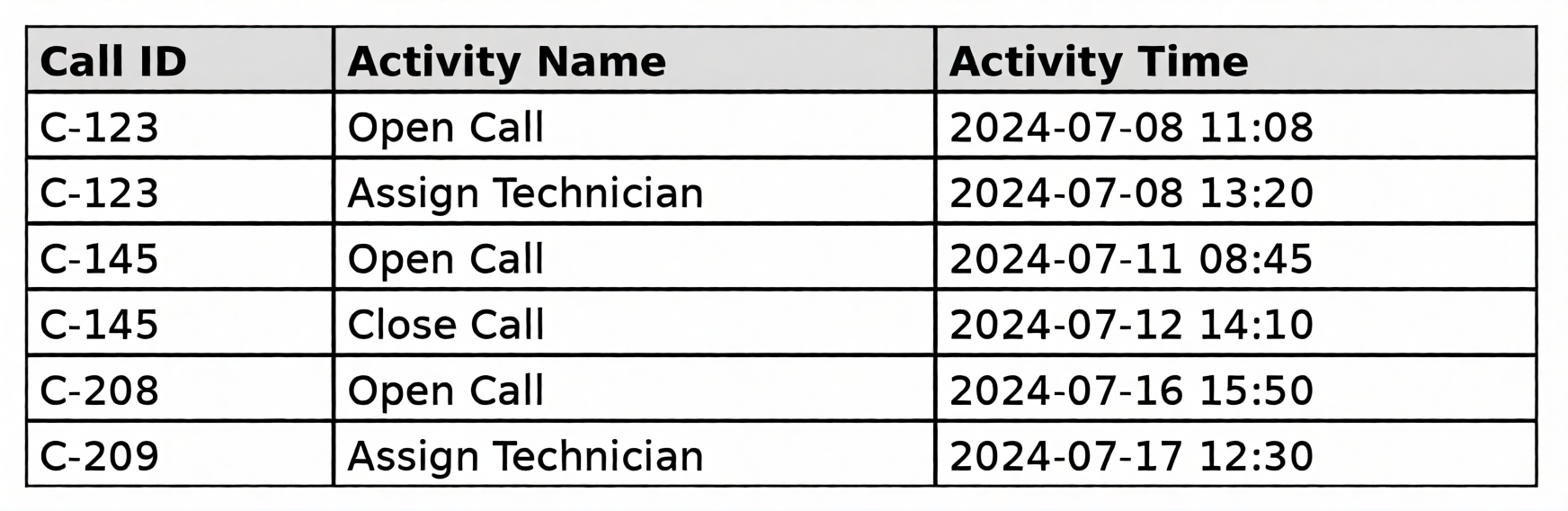

Which calculation allows the analyst to count the calls that have never had a technician assigned to them?

A. SUM({ FIXED [Call ID] : IF MAX([Activity Name] = " Assign Technician " ) THEN 0 ELSE 1 END })

B. SUM({ INCLUDE [Activity Name] : COUNT(IF [Activity Name] < > " Assign Technician " THEN 1 END) })

C. COUNT({ FIXED [Call ID] : IF [Activity Name] < > " Assign Technician " THEN 1 ELSE 0 END })

D. COUNTD(IF { INCLUDE [Activity Name] : NOT " Assign Technician " } THEN [Call ID] END)

A.   SUM({ FIXED [Call ID] : IF MAX([Activity Name] = " Assign Technician " ) THEN 0 ELSE 1 END })

Explanation

The correct answer is A. SUM({ FIXED [Call ID] : IF MAX([Activity Name] = "Assign Technician") THEN 0 ELSE 1 END }). This calculation uses a Level of Detail (LOD) expression with the FIXED keyword to evaluate each Call ID independently. For each Call ID, the MAX([Activity Name] = "Assign Technician") checks whether the value "Assign Technician" exists anywhere in the Activity Name field for that call. If it does, the MAX function returns TRUE (1), and the IF statement returns 0. If the call never had a technician assigned, the MAX returns FALSE (0), and the IF statement returns 1. The outer SUM then aggregates these 1s and 0s across all Call IDs, effectively counting the number of calls that never had a technician assigned. This makes option A the correct answer.

Why the other options are incorrect:

B. SUM({ INCLUDE [Activity Name] : COUNT(IF [Activity Name] <> "Assign Technician" THEN 1 END) })
– The INCLUDE keyword adds Activity Name to the level of detail, which increases granularity rather than fixing it at the Call ID level. This results in overcounting because each activity row is evaluated separately instead of grouping by Call ID. Additionally, the COUNT function counts non-null values, which may produce inflated totals.

C. COUNT({ FIXED [Call ID] : IF [Activity Name] <> "Assign Technician" THEN 1 ELSE 0 END })
– The IF statement returns 1 for every activity row that is not "Assign Technician", not for each Call ID. A call with multiple non-technician activities (like "Open Call" and "Close Call") would be counted multiple times, leading to overcounting. It does not correctly identify calls that never had a technician assigned.

D. COUNTD(IF { INCLUDE [Activity Name] : NOT "Assign Technician" } THEN [Call ID] END)
– This calculation contains syntax errors and improper logic. The NOT operator cannot be applied to a string literal in this manner, and the INCLUDE LOD combined with the IF statement does not correctly isolate calls without an "Assign Technician" activity. It will not produce the desired count.

Reference:

Tableau Desktop Specialist and Tableau Data Analyst content areas on Level of Detail (LOD) Expressions — specifically FIXED, INCLUDE, and EXCLUDE keywords, and their use in aggregating data at specific dimensions for conditional counting and filtering.

Salesforce-Tableau-Data-Analyst Exam Questions - Home Previous
Page 7 out of 43 Pages