Last Updated On : 17-Aug-2026


Salesforce Certified CRM Analytics and Einstein Discovery Consultant Practice Test

Prepare with our free Salesforce Certified CRM Analytics and Einstein Discovery Consultant sample questions and pass with confidence. Our CRM-Analytics-and-Einstein-Discovery-Consultant practice test is designed to help you succeed on exam day.

114 Questions
Salesforce 2026

consultant is reviewing a model that is set to maximize the daily sales quantity of consumer products in stores, and they see this recommendation.
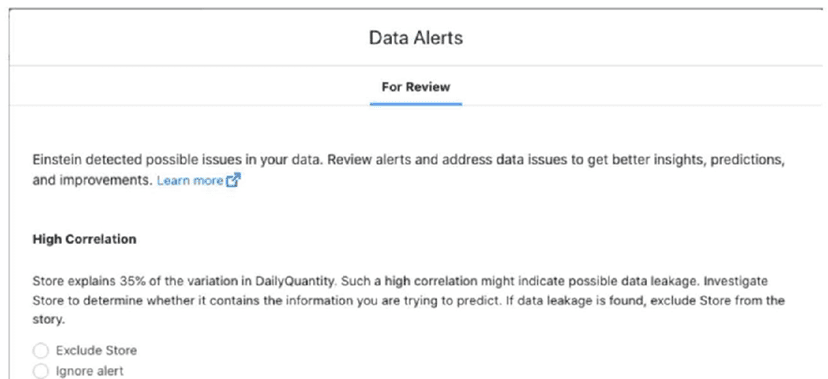
Which action should the consultant take?

A. Verifyclient expectations that Store is a strong predictor for daily sales quantity.

B. Remove the Store field from the model definition, because that is the recommended action.

C. Ignore alert; the explanation of variation is only 35%, which is below 50%,

A.   Verifyclient expectations that Store is a strong predictor for daily sales quantity.

Explanation:

The alert indicates "High Correlation" – Store explains 35% of the variation in Daily Quantity. This is flagged as a potential data leakage risk, meaning Store might contain information that is directly or indirectly related to the outcome you are trying to predict (e.g., Store could represent store size, location traffic, or even the target itself if not properly anonymized). However, data leakage is a business context question, not a purely statistical one. The consultant must verify with the client whether Store is a legitimate predictor (e.g., does store location naturally drive sales volume?) or if it inadvertently encodes future information (leakage). Only after this validation should the consultant decide to exclude or keep the field.

Why the others are wrong:

B (Remove the Store field because it's the recommended action):
The alert recommends investigating Store, not automatically removing it. Removing without business validation could eliminate a critical, legitimate predictor.

C (Ignore alert because variation is only 35%):
35% is not "only" – it is a strong correlation that warrants investigation. Ignoring it risks deploying a model with data leakage, which would perform poorly in production when Store values change or are unavailable.

References:

Salesforce Help – "Data Alerts – High Correlation": Explicitly states that high correlation may indicate data leakage and requires investigation.

Einstein Discovery Best Practices Guide: Data leakage must be validated with business context before exclusion.

A project team member uploads a CSV file to CRM Analytics, and they notice a few records failed during the upload. The manager wants to view the error log generated so this can be fixed and uploaded again. The manager has the CRM Analytics administrator permissionbut is unable to download the error log details. Why is the manager unable to download the log details?

A. They do not have the Upload External Data to CRM Analytics permission enabled.

B. They do not have the Download CRM Analytics Data permission enabled.

C. Only the user who uploaded the external data file can download the error log.

B.   They do not have the Download CRM Analytics Data permission enabled.

Explanation:

When a CSV file upload to CRM Analytics fails for some records, the system generates an error log that provides details about which rows failed and why (e.g., data type mismatch, missing required fields). To download this error log (as a CSV file), the user must have the "Download CRM Analytics Data" permission (also known as "Export Data" or "Download Data") enabled in their permission set. Even though the manager has the CRM Analytics Administrator permission, that permission alone does not grant data export/download rights—it must be explicitly assigned separately. Without this permission, the download button for the error log will be grayed out or unavailable.

Why the others are wrong:

A (Upload External Data permission):
The "Upload External Data" permission is required to upload the file initially, but it is not required to download the error log. The manager is trying to download, not upload.

C (Only the user who uploaded can download):
This is false. Any user with the appropriate "Download CRM Analytics Data" permission can download the error log, regardless of who performed the upload. The error log is associated with the dataset, not the uploader's user record.

References:

Salesforce Help – "Upload CSV Files to CRM Analytics": States that error logs can be downloaded by users with the "Download CRM Analytics Data" permission.

CRM Analytics Permissions Guide: Lists "Download CRM Analytics Data" as a separate permission from administrator rights.

Universal Containers uses CRM Analytics to build dashboards for different departments: Sales, Service, and Marketing. Users in the samedepartment have the same role and need to have access to the same dashboards. Dashboards for different departments use some common datasets with the same row-level security.
How should a CRM Analytics consultant address this need?

A. Create one app for each department, put common datasets in the shared app, and use roles to share apps.

B. Create one app for each department, put common datasets in the shared app, and use profiles to share apps.

C. Create one app for each department, put common datasets in the shared app, and use permission sets to share apps.

C.   Create one app for each department, put common datasets in the shared app, and use permission sets to share apps.

Explanation:

The requirement involves three departments (Sales, Service, Marketing), each needing their own dedicated app with department-specific dashboards, while sharing common datasets across departments with consistent row-level security. The recommended approach is:

Create one app per department – Each app contains dashboards relevant to that department.

Place common datasets in a shared app or shared folder – Datasets used across departments reside in a central location, making them accessible to multiple apps.

Use permission sets to share apps – Permission sets are the most flexible and scalable way to grant app access in CRM Analytics. They allow you to assign the appropriate app permissions to users based on their department, without relying on rigid role hierarchies or profiles. This also supports row-level security because datasets enforce security predicates regardless of which app accesses them.

Why the others are wrong:

A (Use roles to share apps):
Roles are hierarchical and not ideal for cross-department sharing. A user in Sales may not have the same role as another Sales user if the hierarchy varies. Permission sets are more direct and manageable.

B (Use profiles to share apps):
Profiles are coarser and less flexible than permission sets. They apply to all users with that profile, making it difficult to grant app access to only specific departments without creating multiple profiles. Permission sets are the recommended best practice.

References:

Salesforce Help – "Share Apps in CRM Analytics": Recommends using permission sets for app access.

CRM Analytics Security Guide: Permission sets are the preferred method for granular app sharing.

A system administrator at Cloud Kicks creates a joined report to showcase the new business deals closing in the current quarter, which was well received by the business stakeholders. A manager wants to visualize this report on CRM Analytics. The CRM Analytics consultant determines the report can be trended on CRM Analytics, but it's not working as expected. What is causing the issue?

A. Trending dashboards cannot be created from joined reports.

B. The Salesforce report was filtered on quarterly data which meant it did not have enough data to trend on CRM Analytics.

C. The Analytics Integration user did not have permission to view the report on Salesforce.

A.   Trending dashboards cannot be created from joined reports.

Explanation:

In CRM Analytics (formerly Tableau CRM), you can create a trending dashboard (or "trended dataset") from Salesforce reports to track changes over time. However, joined reports are explicitly not supported for trending. The trending feature requires a single primary object/report as the source to track historical snapshots. Joined reports combine data from multiple report types (e.g., Opportunities + Cases) which creates a complex, non-linear structure that CRM Analytics cannot reliably snapshot and trend over time. The consultant must either use a non-joined report or build a custom dataset via a recipe/dataflow to achieve trending.

Why the others are wrong:

B (Report filtered on quarterly data):
Filtering on quarterly data does not prevent trending—it simply limits the data range. Trending can still work with quarterly snapshots as long as the report type is supported.

C (Integration User lacks permission):
If the Integration User lacked permission, the report would not load at all. The issue is specifically that it loads but cannot be trended, pointing to a supported report-type limitation.

References:

Salesforce Help – "Trend a Salesforce Report": Explicitly states that joined reports are not supported for trending.

Trailhead – "Create Trending Dashboards": Notes that only tabular and summary reports are supported; joined reports are excluded.

Cloud Kicks has a dashboard that displays accounts and opportunities data in a table that contains actions to open the records in Salesforce. Since the company has allowed several accounts to be created with the same names, when users try to perform actions, they are prompted with only a record ID to select, leaving the users confused and unable to act.
How should the CRM Analytics consultant solve this problem?

A. Insert more fields in the dataset action "Display Fields" so the users know which account they are acting on.

B. Discuss with the stakeholders If the action Is really necessary for the table.

C. Ask the admin to start applying duplicate rules based on the account's Name field.

A.   Insert more fields in the dataset action "Display Fields" so the users know which account they are acting on.

Explanation:

When a table widget includes record actions (e.g., "Open in Salesforce"), the action dialog displays a list of matching records for the user to select. By default, it may show only the Record ID or a single field, which is unhelpful when multiple accounts share the same name. The consultant can resolve this by configuring the "Display Fields" setting on the dataset action. This allows you to add additional fields (e.g., Account Name, Billing City, Industry, or any other identifying field) to the action's selection dialog. Users will then see a more descriptive list (e.g., "Acme Corp - New York - Technology"), enabling them to confidently select the correct record. This is a configuration change, not a data cleanup or process change.

Why the others are wrong:

B (Discuss if the action is necessary):
Removing the action avoids the problem but does not solve the underlying user confusion. If the action is needed for business efficiency (which it likely is), this is not a constructive solution.

C (Apply duplicate rules):
Duplicate rules prevent new duplicate accounts from being created, but they do not resolve the issue for existing duplicate-named accounts. Users still face the same selection dilemma. Additionally, duplicate rules are a Salesforce admin function, not a CRM Analytics dashboard configuration.

References:

Salesforce Help – "Configure Dataset Actions": Explains the "Display Fields" setting to show additional fields in action dialogs.

CRM Analytics Dashboard Designer Guide: Dataset actions allow you to customize which fields appear when users interact with records.

CRM-Analytics-and-Einstein-Discovery-Consultant Exam Questions - Home Previous
Page 3 out of 23 Pages